Who is on my Wi-Fi?
Your router keeps a list of every device it has handed an address to, and a network scan from your phone shows every device that answers right now. Neither list tells you who a device belongs to, so the useful question is not what is on the network but what is on it that was not there before. Most unknown entries turn out to be phones using private addresses or smart plugs built on generic Wi-Fi chips.
RECON's New Device Check answers by comparison. It scans your network, remembers what it found for that specific network, and on every later run lists what was not there before. The first run cannot find anything new; it records a baseline, and the app says so rather than presenting an empty result as good news.
- Connect your iPhone to the Wi-Fi you want to check and tap RUN on New Device Check in the checks row on the dashboard. The live log shows each step as it happens, and you can close it while the check keeps running.
- The first run on a network records a baseline: every device that answered, keyed by hardware address where one is visible, so a laptop that gets a new IP address is not reported as a stranger later.
- Run it again later, for example after guests leave or once a week. Anything not seen before is listed with its address and, where the hardware address is registered, its manufacturer. Devices from the baseline that stopped answering are listed separately, as most likely asleep rather than gone.
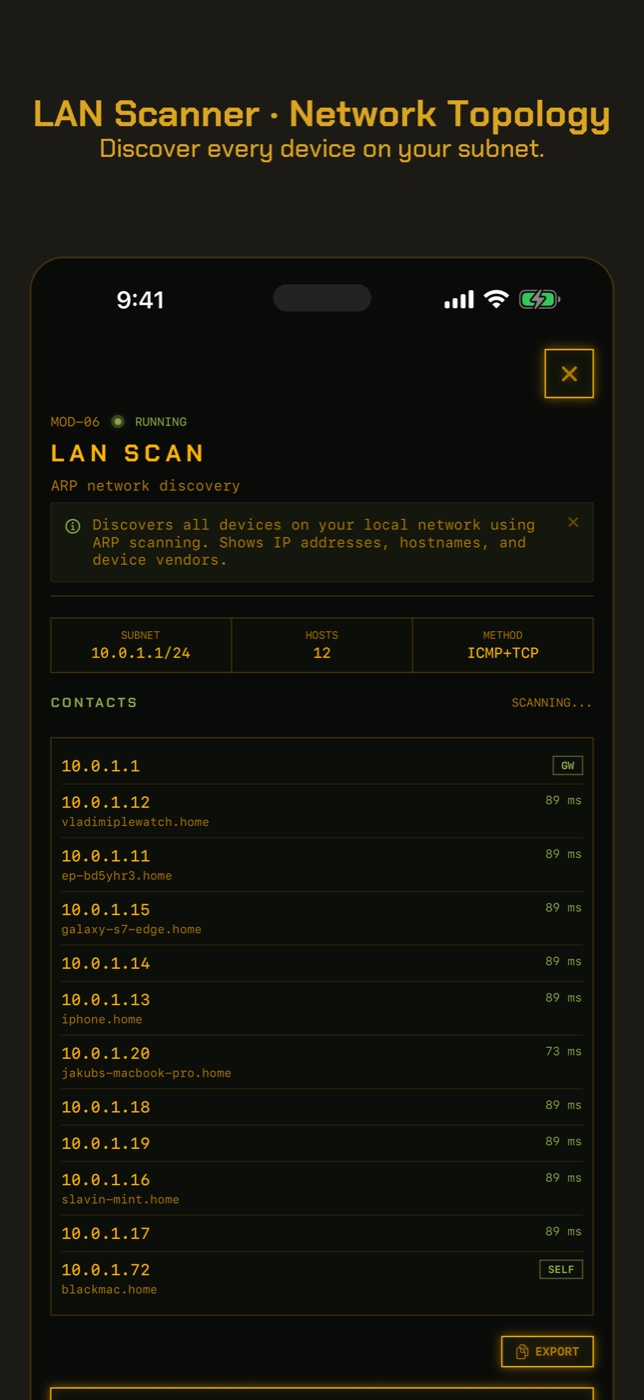
- For the full picture, open LAN Scan to see every device that answered, with its manufacturer and hostname where available. Look up an unfamiliar prefix with the MAC vendor lookup tool.
- If the scan could not see other devices at all, the check says so and leaves your baseline unchanged, so a blocked scan never makes every real device look new next time.
What the device list actually shows
Every device on your Wi-Fi has two addresses. The IP address, something like 192.168.1.23, is lent to it by the router and can change. The hardware address, also called the MAC address, is six pairs of characters such as 3C:22:FB:1A:09:4E, and the first three pairs identify the company that registered it. That prefix is how a router or a scanner turns an anonymous address into a name like Apple, Samsung or Espressif.
The name you see is therefore a guess about who made the Wi-Fi chip, not who owns the device or what it is. A smart bulb, a robot vacuum and a doorbell from three different brands can all show up as the same chip maker. A hostname, when a device offers one, is more helpful: iPhones often announce the owner's name, laptops announce the computer name, and televisions announce the model.
A typical home has more devices than people expect. Count phones, laptops, tablets, televisions, streaming sticks, games consoles, speakers, printers, watches, smart plugs, bulbs, the thermostat, the robot vacuum and anything a visitor connected last month. Twenty to forty devices on a family network is ordinary.
Why so many devices show as unknown
Since iOS 14 and Android 10, phones, tablets and many laptops use a private Wi-Fi address: a random hardware address made up for each network instead of the one burned into the chip. It exists so shops and venues cannot follow you from one Wi-Fi network to the next, and it is switched on by default. Because the address is random, it belongs to no manufacturer, so the router or scanner can only show it as unknown.
You can recognise one from the second character of the address. If it is 2, 6, A or E, the address was generated rather than registered, and the device is almost certainly a phone, tablet, watch or computer belonging to someone who has joined your Wi-Fi. That is usually your own household. It is also why a single phone can appear twice in a router's history: newer iPhones can rotate the address periodically.
The other common source of unknown or odd names is cheap smart-home hardware. Many plugs, bulbs, cameras and sensors are built around a Wi-Fi module from Espressif or Tuya, so they show the module maker instead of the brand on the box. An Espressif device on your list is far more likely to be a light switch than an intruder.
Is someone using my Wi-Fi? Telling an intruder from a guest
A device you cannot name is not evidence of an intruder. Work through it in order: is it a private address (almost always a phone or computer), a smart-home chip maker (almost always a gadget you own), or a brand you recognise? Unplug or switch off suspects one at a time and see which entry disappears.
The signs that someone outside your household really is on your network are more specific. A device that appears at night when everyone is asleep, that keeps coming back after you have accounted for every gadget, or that appeared right after you gave the password to a neighbour or a tradesperson is worth acting on. The fix is the same whatever the cause: change the Wi-Fi password, make sure the router uses WPA2 or WPA3, and turn off WPS, the push-button pairing feature that has a long history of weaknesses.
Someone using your Wi-Fi is not the same as your Wi-Fi being hacked. A neighbour who guessed the password can use your bandwidth and see other devices on the network. Someone who has taken over the router itself can do more, which is a different question, covered in the guide on whether your router is exposed to the internet.
Why the comparison matters more than the list
Looking at a list of thirty devices once tells you very little, because you have nothing to compare it with. Looking at it twice, a week apart, tells you what changed, and that is the question you actually have. A baseline taken when you know everything on the network is yours turns every later scan into a short list of newcomers instead of a long list of mysteries.
How to check without an app
You do not need an app to see what is connected. Your router already keeps the list; the work is in reading it.
- Open your router's admin page. Type 192.168.1.1 or 192.168.0.1 into a browser while on the Wi-Fi (the exact address is usually printed on a sticker on the router, along with the admin password). Look for a section called Connected Devices, Attached Devices, DHCP Clients or Device List.
- If your internet provider gave you an app for the router, the device list is usually on its home screen. It is often easier to read than the admin page and lets you rename devices so you recognise them next time.
- Find your own iPhone's private address so you can cross it off: go to Settings, Wi-Fi, tap the info button next to your network, and read the Private Wi-Fi Address. Do the same on the other phones in the house.
- Use the unplug-one-at-a-time method for anything you cannot name. Switch off one device, refresh the router's list, and see which entry disappears. Tedious, but it works on any router.
- Rename or note down every device you identify. The next time you look, anything without a name is the only thing you need to think about.
- If you find something you cannot explain, change the Wi-Fi password and reconnect your own devices. Anything that does not come back was not yours.
What this cannot tell you
A scan shows which devices answered at one moment. That is useful, and it is narrower than it sounds.
- Networks with client isolation, common on guest networks and public Wi-Fi, stop your phone from reaching other devices. The scan then sees only the router, which looks the same as an empty network. RECON reports this as limited coverage instead of an empty result, and does not record it as a baseline.
- Devices that are asleep, switched off or saving battery do not answer. Phones in a pocket and sleeping laptops often miss a scan, so a device can be connected every evening and still not appear in a lunchtime check.
- A device can copy the hardware address of one you already trust. A comparison against a baseline would then see a familiar device, not a new one. This takes deliberate effort and is rare on home networks, but it means a clean comparison is not proof.
- A scan proves a device is present, not what it is doing or who is holding it. A new entry could be a guest's phone or a stranger's; a familiar entry could be a device that has been compromised. Presence is where the question starts, not where it ends.
- Devices on a separate guest network are invisible from the network you are on, and so is anything using its own mobile data.
- A device that answers nothing, not even a scan, cannot be listed by any scanner. Your router's own list is the better source for those, because every device has to ask the router for an address.
How do I see what devices are connected to my Wi-Fi on my iPhone?
iPhone Settings does not list other devices. Open your router's admin page in Safari (usually 192.168.1.1 or 192.168.0.1) or your provider's router app, or use a network scanner app, which lists every device that answers on the network you are connected to.
Why is there an unknown device on my network?
Usually because it uses a private, randomly generated address, which phones and computers do by default, or because it is a smart-home gadget built on a generic Wi-Fi chip. Check whether the second character of its address is 2, 6, A or E; if so, it is almost certainly a phone, tablet or laptop.
How can I tell if someone is using my Wi-Fi?
Account for every device on the router's list, then compare again later. A device that keeps reappearing after you have identified everything you own, especially at odd hours, is the real sign. Changing the password and seeing what fails to reconnect settles it.
How do I tell if my Wi-Fi is hacked?
Unknown devices alone are weak evidence. Stronger signs are router settings you did not change: a new admin password, DNS servers you did not set, port forwarding rules you did not create, or remote management switched on. Those point at the router itself rather than someone borrowing the Wi-Fi.
Can I kick someone off my Wi-Fi?
Most routers let you block a device by its hardware address from the device list. That is easy to get around by changing the address, so the reliable fix is to change the Wi-Fi password, use WPA2 or WPA3, and turn off WPS.
What is an Espressif device on my network?
Espressif makes the Wi-Fi chip inside a large share of smart plugs, bulbs, switches and sensors. The brand on the box is usually someone else. Switch your smart-home devices off one at a time to find which one it is.
Everything above that needs a scan, the app does in one tap on the Wi-Fi you are on, and it says what it could not see. Get RECON for iPhone — one-time purchase, no account, nothing leaves the device.